Categories: AI Video Workflow, Creator Strategy, Production Process
Tags: veonano, ai creation studio, ai video workflow, content strategy, creator toolkit
What is Veo 3 Image-to-Video?
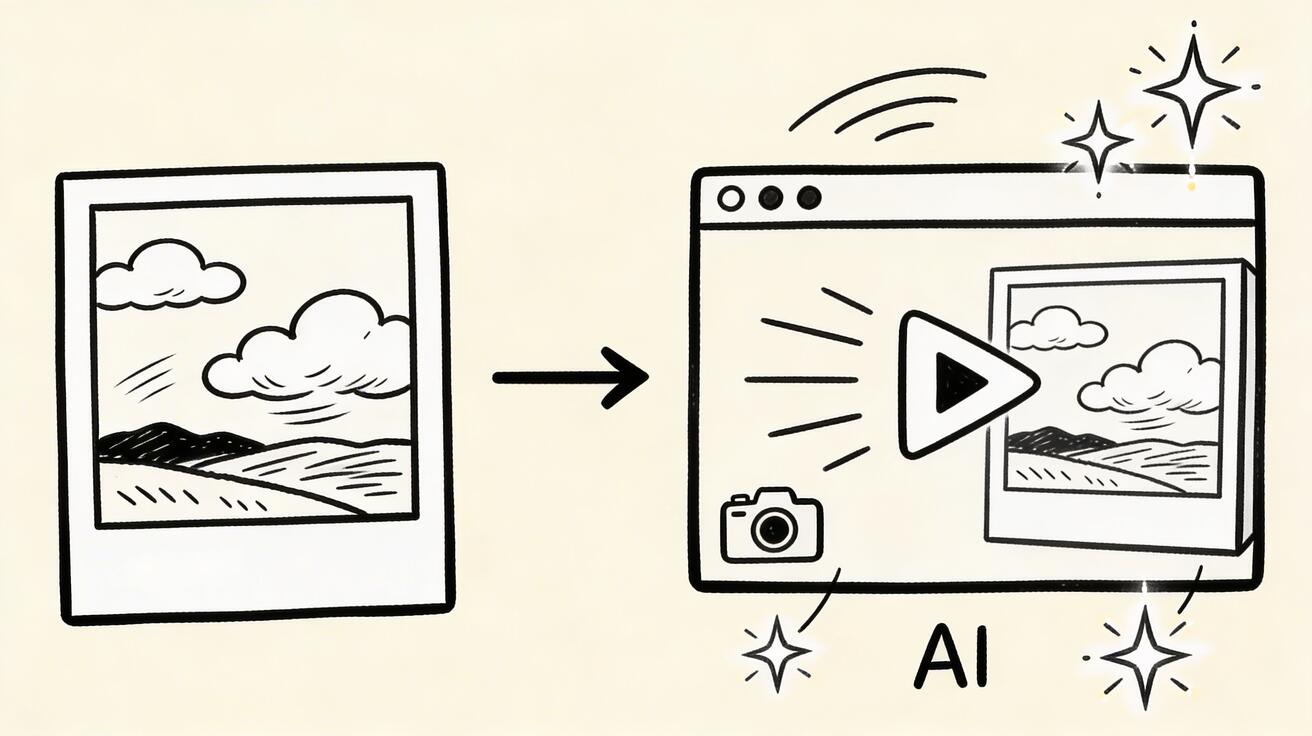
Image-to-video (I2V) technology allows creators to transform static imagery into dynamic cinematic clips. By using a still photo as a foundational reference, VeoNano generates motion, depth, and atmospheric effects while maintaining the original visual integrity of the source file. This process bridges the gap between photography and cinematography, offering a streamlined path to high-quality video production.
What You Can Animate
While the AI is highly versatile, certain subjects yield superior results. Understanding these categories helps in selecting the right source material for your project:
- Works Excellently ✅: Landscape photography featuring mountains, oceans, forests, or dramatic skies. Natural elements like waves, drifting clouds, and wind-blown trees animate with high realism.
- Works With Care ⚠️: Close-up portraits. While subtle facial movements can look stunning, aggressive motion prompts may lead to visual artifacts or distortions.
- Avoid: Extremely low-resolution images. The quality of the output is directly tethered to the resolution and clarity of the input photo.

How to Use Veo 3 Image-to-Video
Transforming your photos follows a straightforward professional workflow:
- Selection: Choose a high-quality image with clear visual depth.
- Upload: Navigate to veonano.com and select the I2V tool to upload your file.
- Prompting: Enter a motion prompt to guide the AI’s animation style.
- Generation: Render the clip. If the motion isn't quite right, refine your prompt and regenerate for a more precise result.

The Motion Prompt System
The secret to cinematic I2V results lies in the motion prompt. Many users fail by providing no direction or being too vague. Effective prompts should describe specific physical movements:
- Camera Movement: Use terms like "slow forward drift" or "dolly in" to create a sense of immersion.
- Environmental Motion: Specify details like "gentle breeze rustling leaves," "strong wind moving through a wheat field," or "natural hair and fabric movement."
- Fluid Dynamics: Describe water effects specifically to ensure realistic flow and reflection.
Pro Tips for Better Results
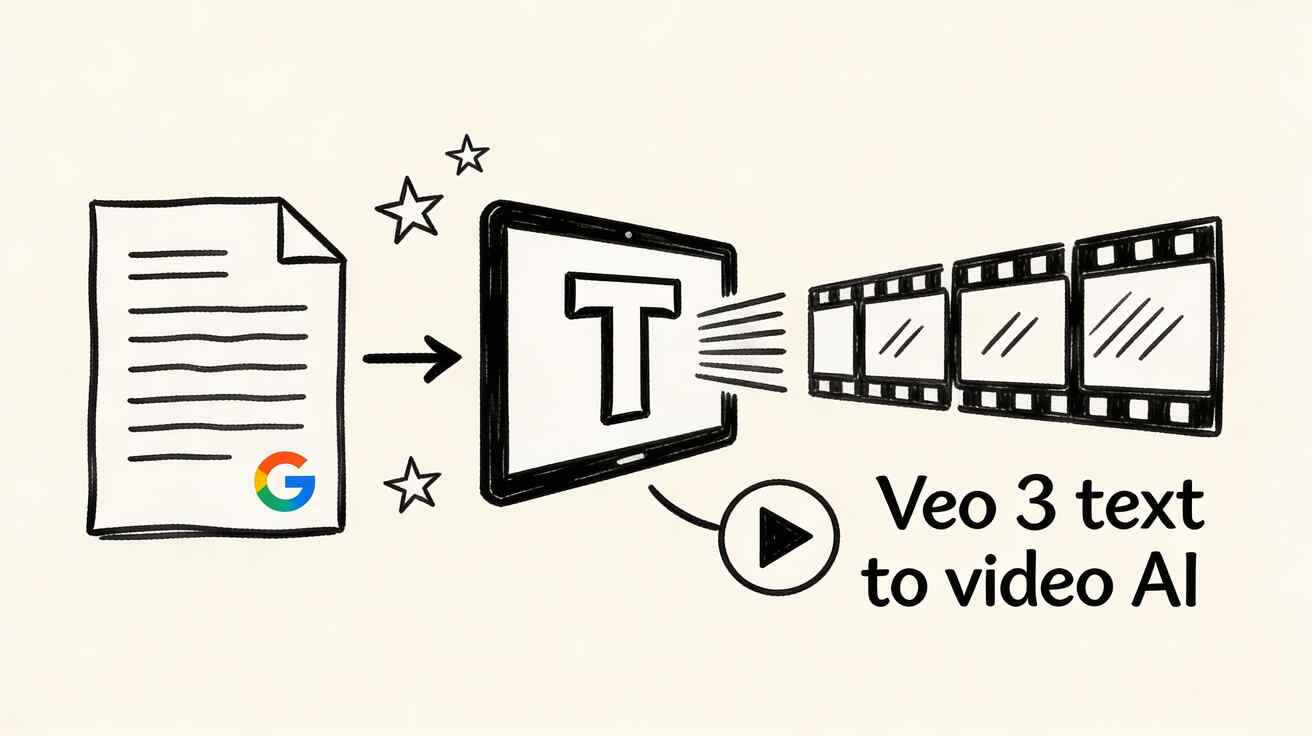
To maximize the potential of VeoNano, focus on the relationship between the image and the intended motion. High-depth images—those with clear foregrounds and backgrounds—provide the AI with more data to calculate realistic parallax. Combining I2V with traditional text-to-video workflows allows for a hybrid approach where you can maintain character or setting consistency across multiple scenes.
How Veo 3 Fits Into a Complete AI Video Workflow
In a professional production environment, I2V serves as a bridge. It allows creators to take concept art or mid-journey stills and turn them into usable B-roll. By standardizing the motion prompt patterns, you can ensure that different clips feel like they belong in the same film, reducing the need for extensive manual editing.
FAQs
1) Can this workflow work for a solo creator?
Absolutely. By using I2V, a solo creator can produce high-end visuals that previously required a full camera crew and VFX team.
2) How do I fix artifacts in facial animations?
Keep your motion prompts "subtle." Instead of asking for a person to turn around, ask for "slight head tilt" or "gentle blinking" to maintain facial consistency.
3) What is the best resolution for input images?
For the best results in 2026, use high-definition source images (at least 1080p or higher) to ensure the AI has enough pixel data to generate clean motion.
Next Step
Explore the full suite of VeoNano production tools and workflow templates at https://veonano.com.
Media References
- https://cdn.veonano.com/blog/veo-3-image-to-video-complete-guide-2026/20260402172442-v8vpfch0.jpeg
- https://cdn.veonano.com/blog/veo-3-image-to-video-complete-guide-2026/20260402172444-2wl69riq.jpeg
- https://cdn.veonano.com/blog/veo-3-image-to-video-complete-guide-2026/20260402172445-k82ojcfr.jpeg
- https://cdn.veonano.com/blog/veo-3-image-to-video-complete-guide-2026/20260402172446-uka2j8pl.jpeg