Categories: AI Video Workflow, Creator Strategy, Production Process
Tags: veonano, ai creation studio, ai video workflow, content strategy, creator toolkit
Introduction
Transforming a static image into a cinematic sequence is no longer a complex manual task. With the latest advancements in Google’s deep learning models, VeoNano allows creators to breathe life into photos with unprecedented physical accuracy. This guide provides a practical framework for mastering image-to-video workflows in 2026.
What is Veo 3 Image-to-Video?
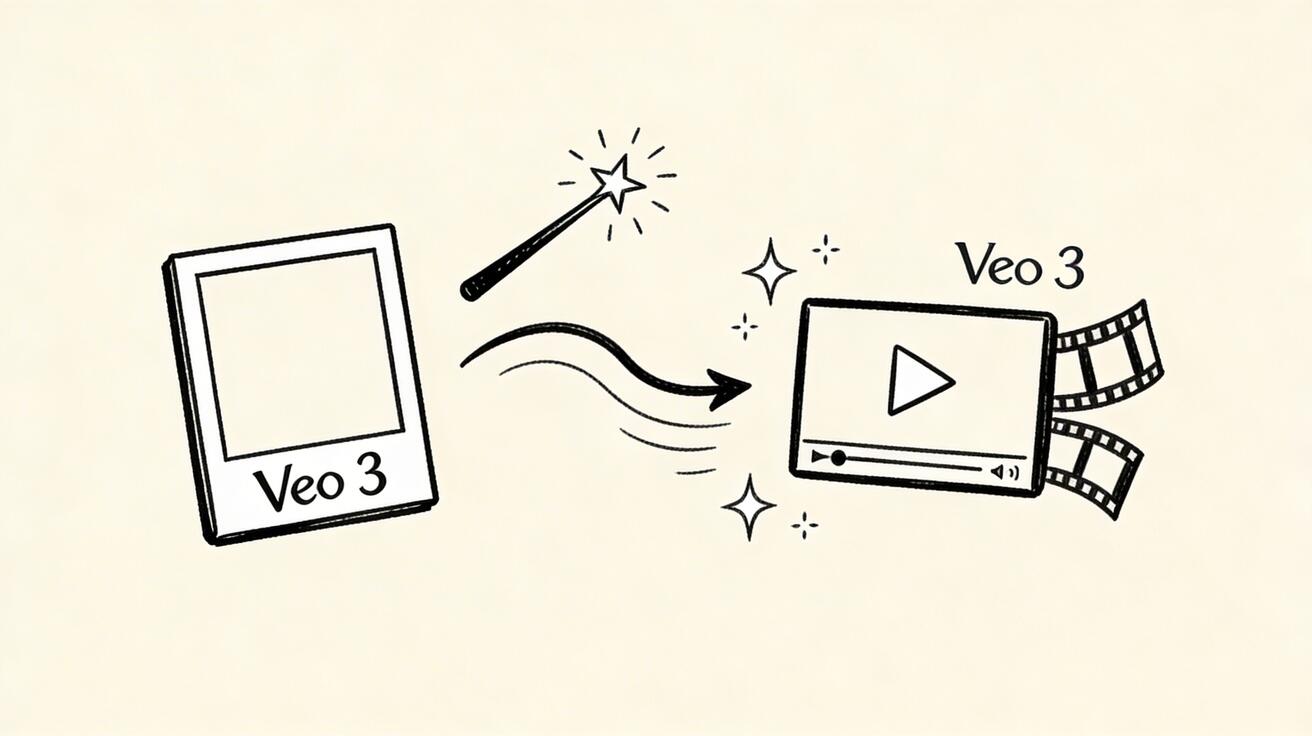
Veo 3’s image animation technology leverages sophisticated neural networks to interpret the depth and context of a still frame. By understanding the underlying geometry of a scene, the model can predict how light, shadows, and objects should move, turning a single JPG or PNG into a high-quality video asset.
Getting Started with VeoNano
To begin animating, visit veonano.com and head to the Image-to-Video dashboard. While the tool is accessible to all, creating a free account ensures you have the full suite of features available for your projects.
- Upload Your Asset: Select your source image.
- Define Motion: Enter a prompt to guide the animation or let the AI apply "natural" motion based on the scene.
- Generate: Process the video and refine as needed.
Technical Specifications for Best Results
To achieve professional-grade output, your source files should meet specific criteria:
- Supported Formats: JPG, PNG, and WebP.
- Resolution: A minimum of 1024x1024 is recommended; higher resolutions yield sharper details.
- Aspect Ratio: Veo 3 is flexible, adapting seamlessly to portrait, landscape, or square orientations.
Advanced Animation Techniques
The "Motion Prompt" is your primary lever for control. Without specific instructions, the AI defaults to context-aware movement. To take full control, use these intensity tiers:
- Light Animation: Use keywords like "very subtle movement" or "minimal motion" for a nearly still, living-photo effect.
- Medium Animation: Allow the AI to interpret the image context for standard cinematic movement.
- Dynamic Animation: Use prompts like "energetic movement" or "dynamic motion throughout" for high-action sequences.
For creators working with specific aesthetics, include the instruction: "preserve the original artistic style throughout the animation" to ensure watercolor, sketches, or unique photographic grains remain consistent.
Use Cases and Industry Applications
Veo 3 excels particularly in simulating natural physics. This makes it a powerhouse for:
- Landscapes: Creating realistic wind, water flow, and lighting shifts.
- Digital Art: Animating AI-generated illustrations and concept art while maintaining stylistic integrity.
- Social Content: Generating 3-5 consistent clips and combining them in editors like CapCut for a rich, varied narrative.
- Seamless Loops: By prompting for "beginning and end frames match," you can create perfect looping backgrounds.
Common Challenges and Fixes
While powerful, the model has specific limitations. It may occasionally struggle with intricate hand gestures or complex full-body poses involving multiple subjects.
Pro Tip: If faces appear distorted, ensure you are using a high-resolution, well-lit portrait. Avoid extreme angles or profile shots, and opt for a gentler motion prompt to maintain facial structure.
Conclusion
Standardizing your animation workflow is the most effective way to scale content production. By utilizing the physics-aware capabilities of Veo 3 within the VeoNano ecosystem, you can move from static concepts to finished video assets with speed and consistency.
Next Step
Explore professional production resources at veonano.com.
FAQs
1) Can this workflow work for a solo creator?
Absolutely. The system is designed to be lean, allowing individual creators to produce high-end visuals without a full production team.
2) How do I ensure my video loops perfectly?
Include "Smooth looping motion" in your prompt and specify that the start and end frames must match.
3) What is the best way to handle complex art styles?
Always explicitly prompt the AI to preserve the specific artistic style (e.g., "charcoal sketch") to prevent the model from defaulting to a photorealistic look during animation.
Media References
- https://cdn.veonano.com/blog/veo-3-image-to-video-guide-2026/20260405195735-gi6qroz1.jpeg
- https://cdn.veonano.com/blog/veo-3-image-to-video-guide-2026/20260405195736-fhnu14nh.jpeg
- https://cdn.veonano.com/blog/veo-3-image-to-video-guide-2026/20260405195736-uk5c4ol1.jpeg
- https://cdn.veonano.com/blog/veo-3-image-to-video-guide-2026/20260405195737-m4gogfkn.jpeg