Google’s Veo 3 Lite has emerged as a cornerstone of the 2026 AI video landscape. At VeoNano, we believe that mastering this tool isn't about finding a "magic button," but rather about developing a disciplined production workflow. This guide breaks down how to harness its power for professional-grade results.
Getting Started and Accessing the Model
Before diving into generation, ensure you have a Google account and a modern web browser. Access is primarily available through three channels:
- Google AI Studio: Recommended for most users as it provides direct control over model parameters.
- Gemini: Ideal for those who prefer a conversational interface for video requests.
- Vertex AI: The enterprise-grade solution for scaled production.
For developers, VeoNano recommends using the Google AI Studio API key to initialize the model within your own environment, allowing for customized duration and generation settings.
The Core Generation Workflow
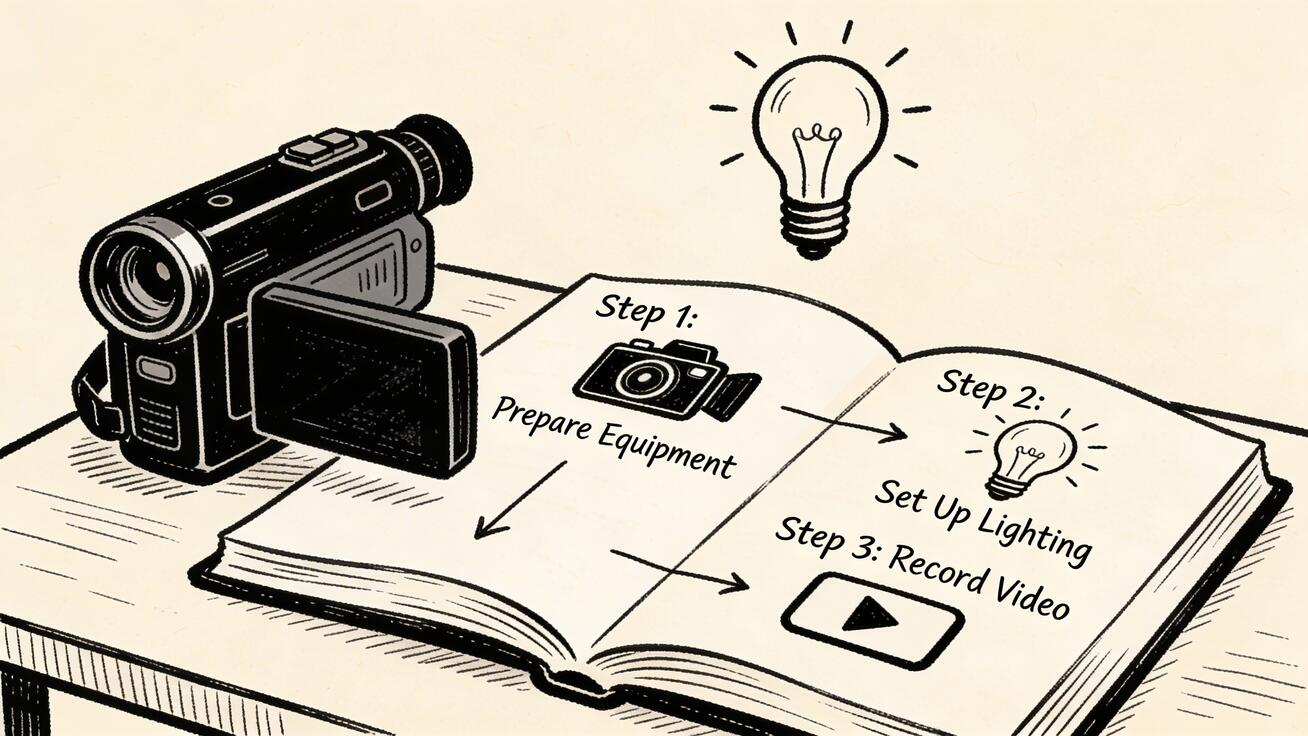
Success with Veo 3 Lite follows a repeatable cycle: Write, Set, Generate, Review, and Refine.
To start your first project, try a descriptive prompt like: “A steaming coffee cup sitting by a rainy window, cozy morning atmosphere, soft natural light, cinematic close-up framing.” This allows you to test how the model handles textures, lighting, and atmospheric depth.
Mastering the Art of Prompting
Prompting is the engine of AI video. To get consistent results, use the VeoNano-approved formula: Subject + Action + Environment + Style/Mood + Camera Angle + Technical Details.
For advanced creators, we recommend the "Because" Method. Instead of just describing a scene, explain the intention behind the shot. By telling the model why a specific movement or lighting choice matters, you allow the AI to optimize the output toward your creative goal.
Image-to-Video and Audio Integration
One of the most potent features of the Lite model is its ability to animate static assets. Simply upload a reference image and describe the desired motion. This ensures visual consistency that text-only prompts sometimes struggle to maintain.
Unlike many competitors, Veo 3 Lite also handles integrated audio. To maximize this, your prompts should explicitly mention sound-producing elements. If your scene features a waterfall, birdsong, or a specific orchestral score, name them clearly to ensure the audio layer matches the visual energy.
Building a Professional Production Pipeline
To scale your content without losing quality, adopt this five-stage pipeline:
- Concept Development: Define your goals.
- Rapid Prototyping: Low-stakes testing of ideas.
- Refined Generation: High-quality rendering of chosen concepts.
- Post-Production: Polishing and editing.
- Library Organization: Archiving assets for future use.
Troubleshooting and Optimization
If your outputs aren't hitting the mark, apply these quick fixes:
- Mismatched Visuals: Simplify your prompt and move the most critical elements to the beginning of the text.
- Unnatural Motion: Use "smooth" descriptors and reduce the number of moving parts in the scene.
- Weak Audio: Explicitly call out the objects making the noise.
- Consistency Issues: In AI Studio, save your prompt configurations and adjust the "temperature" setting to balance creativity with stability.
Conclusion
The key to scaling content in 2026 is standardizing your production. By mastering the technical nuances of Veo 3 Lite and maintaining a stable workflow, you can move from random experimentation to predictable, high-quality output.
Next Step
Ready to streamline your process? Explore VeoNano workflow templates.
FAQs
1) Can this workflow work for a solo creator?
Absolutely. The modular nature of this guide allows solo creators to maintain high standards by reusing proven prompt structures and settings.
2) How do I choose between AI Studio and Gemini?
Use Gemini for quick, creative brainstorming. Switch to Google AI Studio when you need granular control over parameters like temperature and specific model behaviors.
3) How can I ensure my videos don't look "too AI"?
Focus on the "Technical Details" part of the prompt formula. Specifying realistic camera lenses, natural lighting conditions, and subtle motions helps ground the video in reality.